
You’ve built your website, customized every detail, and hit publish. Everything looks perfect at first glance. But does it really work? Broken links, slow-loading pages, or misaligned layouts on mobile devices can lurk unnoticed
Even small issues can turn excitement into frustration, costing you credibility, conversions, and search engine rankings. Visitors expect a smooth, error‑free experience, and when that expectation isn’t met, they leave.
That’s where WordPress site testing comes in. By thoroughly testing performance, usability, and security before going live, you ensure a smooth experience for every visitor. In this post, we’ll walk through the fundamentals of WordPress site testing, covering its benefits, practical strategies, recommended tools, proven processes, and best practices, so you can launch with confidence.
TL;DR
- WordPress site testing ensures a website functions properly, performs efficiently, stays secure, and delivers a smooth user experience.
- The process often involves testing functionality, performance, security, compatibility, and overall user experience.
- To minimize risks, always back up your site and perform tests in a staging environment before applying changes to your live site.
What is WordPress site testing and why does it matter?
WordPress site testing is the process of evaluating a website to ensure it functions correctly, performs efficiently, and delivers a smooth experience for visitors before and after it goes live. It involves reviewing key areas like functionality, speed, design, compatibility, and security to catch any issues that could affect how users interact with your site.
By conducting thorough WordPress site testing, developers and businesses can gain multiple benefits, including:
- Improved user experience: Website testing ensures fast load times, responsive design, and fully functional features, creating a seamless and enjoyable experience for visitors.
- Better conversions: A fast, mobile-friendly, error-free site ranks higher in search engines and encourages users to take meaningful actions.
- Build trust: A well-tested site makes your brand look professional and credible while errors like failed checkouts or broken links can quickly erode reputation and cost you sales.
- Stronger security: Regular WordPress site testing identifies outdated plugins or weak configurations, reducing the risk of hacks and data breaches.
- Avoid costly mistakes: Early testing helps prevent potential financial losses, saves development time and protects your brand reputation from avoidable errors.
General WordPress Site Testing Strategies
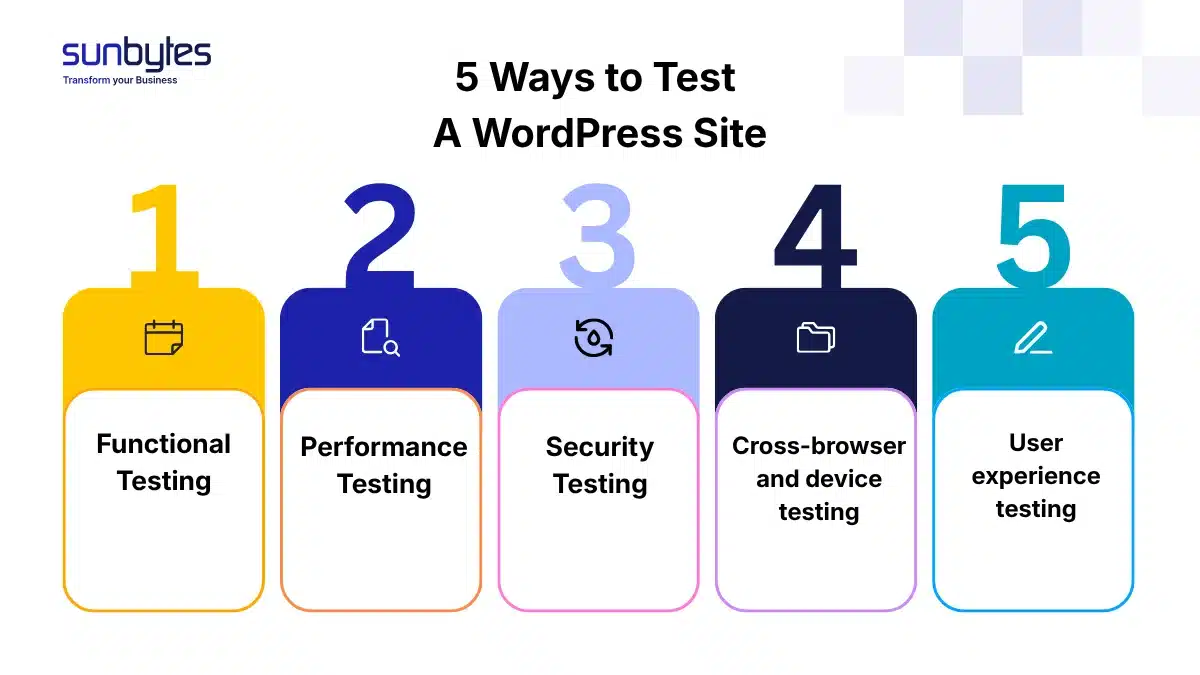
Effective WordPress site testing covers multiple key areas to ensure your website works flawlessly and delivers a seamless user experience. The following sections break down the main testing categories and why they matter.
1. Functional testing
Functional testing ensures that every part of your site works as it should. For example, you might test a contact form to make sure submissions are received correctly, verify that a newsletter signup adds emails to your list, or confirm that “Add to Cart” buttons update the shopping cart properly.
2. Performance testing
Performance testing measures your site’s speed, responsiveness, and stability under different conditions. This could include checking load times, testing how your site handles a surge of visitors, or measuring server response times after enabling a caching plugin.
3. Security testing
Security is a critical part of WordPress site testing, helping protect your site from vulnerabilities and unauthorized access. Examples include scanning for outdated plugins, testing for weak passwords, and ensuring sensitive pages are properly secured. Penetration testing can also be performed, simulating attacks to identify and fix weaknesses before they’re exploited.
4. Cross-browser and device testing
Compatibility testing ensures your site performs well on all devices, browsers, and operating systems. For instance, check that your homepage layout looks correct in Chrome, Firefox, Safari, and Edge, or test that menus and buttons work seamlessly on both iPhone and Android devices. Usability testing here ensures navigation is intuitive for all users.
5. User experience testing
User experience testing focuses on how visitors interact with your site and whether they can easily achieve their goals. Examples include observing users as they try to complete a purchase, testing whether menus are easy to navigate, or confirming that key information is easy to find on both desktop and mobile screens.
Best Tools for WordPress site testing
With so many tools available, choosing the right ones for WordPress site testing can be overwhelming. The following recommendations help ensure your site’s performance, security, functionality, and user experience before deploying changes.
| Focus area | Proposed tools | Pros | Cons |
|---|---|---|---|
| Functional testing | PHPUnit | – Designed specifically for PHP development with WordPress. – Integrates easily into CI/CD workflows – Provides precise and automated tests for logic and functions | – Steep learning curve for beginners – Requires writing tests manually |
| Selenium | – Automates browser actions to test forms, logins, and workflows – Useful for end-to-end testing across different browsers and environments. | – Setup and maintenance can be complex – Flaky tests if not properly configured – Requires programming skills | |
| Performance testing | Google PageSpeed Insights | – Free and widely trusted – Provides separate performance scores for mobile and desktop – Direct suggestions tied to Google metrics | – Based on simulated environments, which may not fully reflect real user conditions – Limited deep-dive analysis compared to advanced tool |
| GTmetrix | – Clear performance scores with waterfall charts – Actionable recommendations for optimization – Good historical comparison data | – Free version has test location limitations – Doesn’t simulate real user traffic | |
| Security testing | WPScan | – WordPress‑specific vulnerability scanning – Frequently updated vulnerability database – Suitable for automation via CLI and integration into pipelines | – The free version has usage limitations. – May produce false positives that require manual verification |
| Wordfence Security | – Integrated firewall + malware scanning – Real‑time protection and login hardening – Good for beginners (UI‑driven) | – Can be heavy on server resources – Some advanced features require paid license | |
| Cross-browser & device compatibility testing | BrowserStack | – Real devices & real browsers – Supports automated – Selenium tests – Extensive OS and browser matrix | – Paid subscriptions can be pricey – Can be overkill for small WordPress sites |
| LambdaTest | – Real browser testing + automation support – More affordable than some competitors – Good for quick responsiveness testing | – Limited free tier – Fewer device options than BrowserStack | |
| User experience | Hotjar | – Provides heatmaps, session recordings, and feedback polls to understand user behavior – Helps understand how visitors interact with WordPress pages in real scenarios | Free tier has limited recordings and retention |
| Lighthouse | – Measures Core Web Vitals, which directly impact perceived user experience – Includes accessibility checks and performance optimization suggestions – Free and easy to use via Chrome DevTools | – Scores are based on simulated visits, not real users – Results may vary from actual user experience depending on device or network conditions – Does not capture real user behavior such as clicks, scrolling, or conversions (unlike Hotjar). |
How to perform WordPress site testing
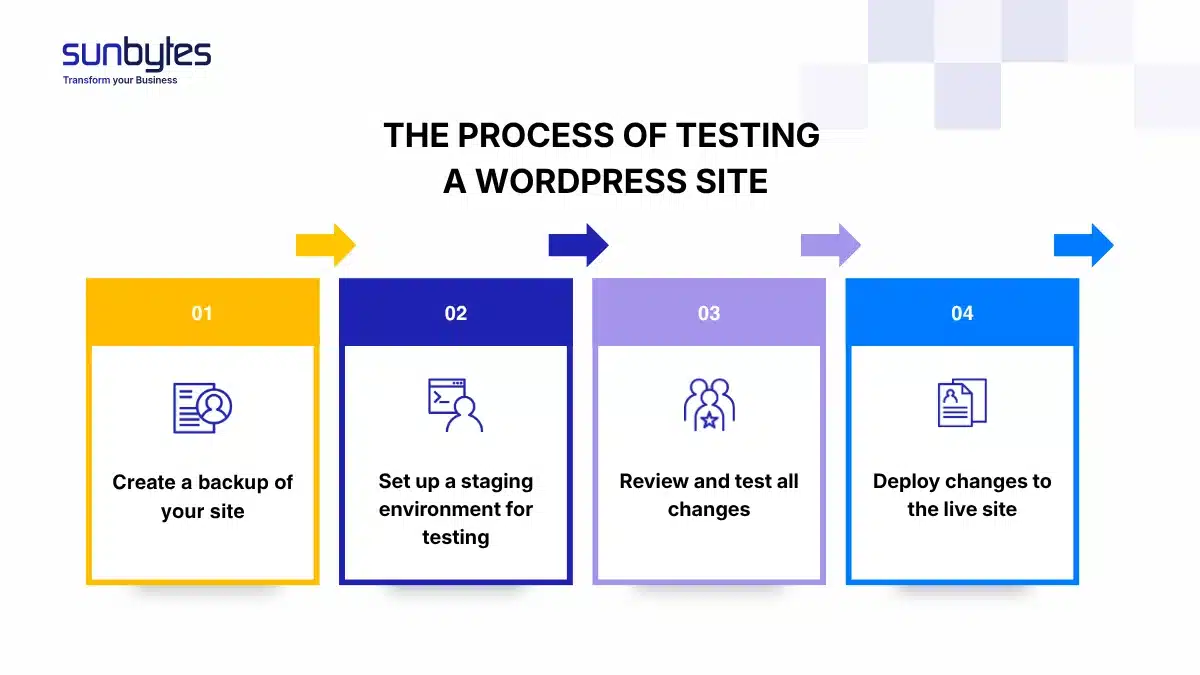
Once you’ve defined your testing strategies and selected your tools, it’s time to put them into action. A structured approach ensures nothing slips through the cracks and your WordPress site is fully ready for launch. Here are the detail steps:
Step 1: Backup your site before testing
Always start WordPress site testing by creating a full backup of your WordPress site (database, media files, themes, and plugins). This ensures that if anything goes wrong during testing, you can quickly restore your site to its original state without losing data or functionality.
Step 2: Test on a staging environment
Avoid experimenting on your live site. Instead, a staging environment is a clone of your website where you can safely test updates, new plugins, or design changes. This way, visitors won’t encounter broken features or errors while you troubleshoot behind the scenes.
Step 3: Test your changes
With your staging environment ready, test your site thoroughly. Check for speed, responsiveness, performance, usability, and compatibility across different browsers and devices. The goal is to catch potential issues before they affect your users.
Step 4: Apply changes to the live site
Once your team has completed WordPress site testing and resolved any bugs, apply the tested updates and changes to your live site. This makes sure that your website runs smoothly with the latest functionality.
Best practices for WordPress site testing
To make the WordPress site testing process effective, it helps to follow proven best practices that reduce risks and streamline testing. Below are five proven practices that will help you strengthen your website testing workflow.
1. Document issues and fixes
Keep a record of what you tested, the issues you found, and how you fixed them. Documentation helps you track progress, prevents repeat mistakes, and creates a reliable workflow for future updates. It also makes collaboration easier if multiple people manage your site.
2. Work with testing experts when needed
For larger or feature‑rich WordPress sites, expert QA support can uncover hidden issues, streamline testing, and maintain long‑term quality. Partnering with professionals ensures your site is thoroughly evaluated and optimized.
3. Involve real users for usability feedback
Real users provide insights you can’t get from tools. As part of WordPress site testing, invite a small group to navigate your site and share feedback on clarity, navigation, and ease of use. Their perspective helps uncover issues you might overlook, ensuring your site delivers a smooth and intuitive experience.
4. Automate repetitive tests where possible
While manual software testing remains essential, WordPress site testing can benefit greatly from automation. Using tools and plugins, you can automatically run performance scans, security checks, and regression tests after updates. Automating these repetitive tasks saves time, ensures consistency, and allows your team to focus on deeper analysis and site improvements.
Unlock Peak Performance with Effective WordPress Site Testing
In today’s competitive landscape, WordPress site testing is essential for ensuring your website stands out and wins customers’ trust. While basic checks can be done in-house, involving software testing experts can make the process faster, more thorough, and far less prone to errors. With professional guidance, you can uncover hidden issues, prevent problems from updates or plugins, and build a reliable WordPress site that grows confidently with your business.
About Sunbytes
With headquarters in the Netherlands and a delivery hub in Vietnam, Sunbytes has been delivering Digital Transformation Solutions for over 15 years. With senior QA engineers at the core, we uphold the highest standards of quality assurance – seamless, reliable and built to last.
Driven by a strong commitment to quality and sustainability, we strengthen our solutions through two additional key pillars:
- Cybersecurity Solutions: Our “Secure by Design” methodology ensures that vulnerabilities are identified early and resolved without slowing down delivery. Security is embedded into real-world architectures and workflows, turning risk reduction into practical improvements your team can sustain.
- Accelerate Workforce Solutions: As your site evolves, so do your testing needs. We provide flexible QA capacity and WordPress-specific expertise to support ongoing updates, migrations, and new feature releases, ensuring quality keeps pace with development.
Ready to make website testing smooth and efficient? Book a consultation with our experts today and let Sunbytes help you elevate your digital journey.
FAQs
Regular testing is essential to keep your site secure and performing well. Key times include after installing updates, adding new plugins or features, making design changes, or performing major content edits. A good routine is to perform a quick check weekly or biweekly, with more thorough testing after significant updates.
In WordPress site testing, staging testing happens in a safe, cloned environment where you can experiment without affecting real visitors. Live testing, on the other hand, takes place on your actual site, where any errors could disrupt user experience. Staging is ideal for catching problems before they reach your audience, while live testing is useful for monitoring performance under real‑world conditions.
Manual testing relies on human interaction, clicking through pages, submitting forms and checking usability. Meanwhile, automated testing uses tools or scripts to run repetitive checks like performance scans, regression tests, or security scans. Both approaches complement each other: manual testing uncovers user experience issues while automation ensures consistency and saves time. For a deeper comparison, see our guide on Manual vs Automated Software Testing: Key Differences, Pros, Cons and When to Use Each.
The duration of WordPress site testing varies depending on your site’s complexity. A small blog might only take a few hours while large e-commerce sites with multiple plugins, integrations and custom features can require several days. It also depends on whether you’re performing basic functionality checks, performance optimization, security scans, or comprehensive regression testing. Regular testing in smaller increments can make the process more manageable and prevent last-minute surprises.
Let’s start with Sunbytes!
Let us know your requirements for the team and we will contact you right away.