
WordPress thrives on plugins, small pieces of code that can transform a simple site into a fully-featured platform. But sometimes, these extensions clash.
The quick fix? Deactivate, isolate, and update. But understanding why conflicts happen, whether due to overlapping functions, outdated code, or theme incompatibilities, is essential for smooth WordPress development.
In this post, we’ll dive into the mechanics of WordPress plugin conflicts, walk through practical troubleshooting techniques, and share best practices to ensure your projects remain stable.
TL;DR
- WordPress plugin conflicts often occur when multiple plugins try to control the same functionality, outdated code clashes with the current WordPress core/theme/server environment or when several plugins attempt to connect to the same third‑party API simultaneously.
- Typical signs include a white screen, error messages, broken features, or a malfunctioning admin dashboard. You may also notice slow performance or layout issues.
- When WordPress plugin conflicts happen, it’s advised to back up your site first, then deactivate all plugins and reactivate them one by one to identify the culprit. Once found, check for compatibility or updates, and replace it with an alternative plugin or theme if needed.
- To prevent conflicts, test new plugins in a staging environment, choose well-reviewed and compatible options, remove unnecessary plugins, keep WordPress core/PHP/themes/plugins updated, and regularly clean up your database.
What is WordPress plugin conflicts?
A WordPress plugin conflict occurs when two or more plugins, or a plugin and your theme, interfere with each other’s functionality, causing errors, unexpected behavior, or even breaking your website.
Common causes of WordPress plugin conflicts
Understanding the most common causes of these conflicts can help you troubleshoot issues faster and prevent downtime.
Duplicate functionality
Installing multiple plugins with overlapping features can make them override each other’s settings, causing errors or unexpected behavior. For example, if two SEO plugins modify meta tags simultaneously, it can break your site’s layout or functionality.
Outdated plugins
Running outdated plugins is another major source of WordPress plugin conflicts as older versions may not be compatible with the latest WordPress core or other updated plugins. Since updates often include bug fixes and compatibility improvements, skipping them increases the risk of issues.
Theme/PHP/server compatibility issues
Some plugins rely on your theme’s code structure. If the theme, whether a pre-built template or an internally developed custom theme, doesn’t support certain hooks, scripts, or styling conventions, plugin functionality can break.
On the other hand, plugins that require a newer PHP version or specific server settings can clash with other plugins or your WordPress core if the environment isn’t compatible.
Third-Party API Conflicts
Plugins that rely on external services can also trigger WordPress plugin conflicts when multiple plugins try to connect to the same API simultaneously. This can result in failed integrations, delays, or unexpected behavior.
JavaScript or CSS conflicts
Plugins that load their own JavaScript or CSS may override or interfere with other plugins’ scripts, causing features like sliders, forms, or menus to malfunction.
How can I tell if I have a WordPress plugin conflict?
WordPress plugin conflicts can occur in several ways. Watch out for these common indicators:
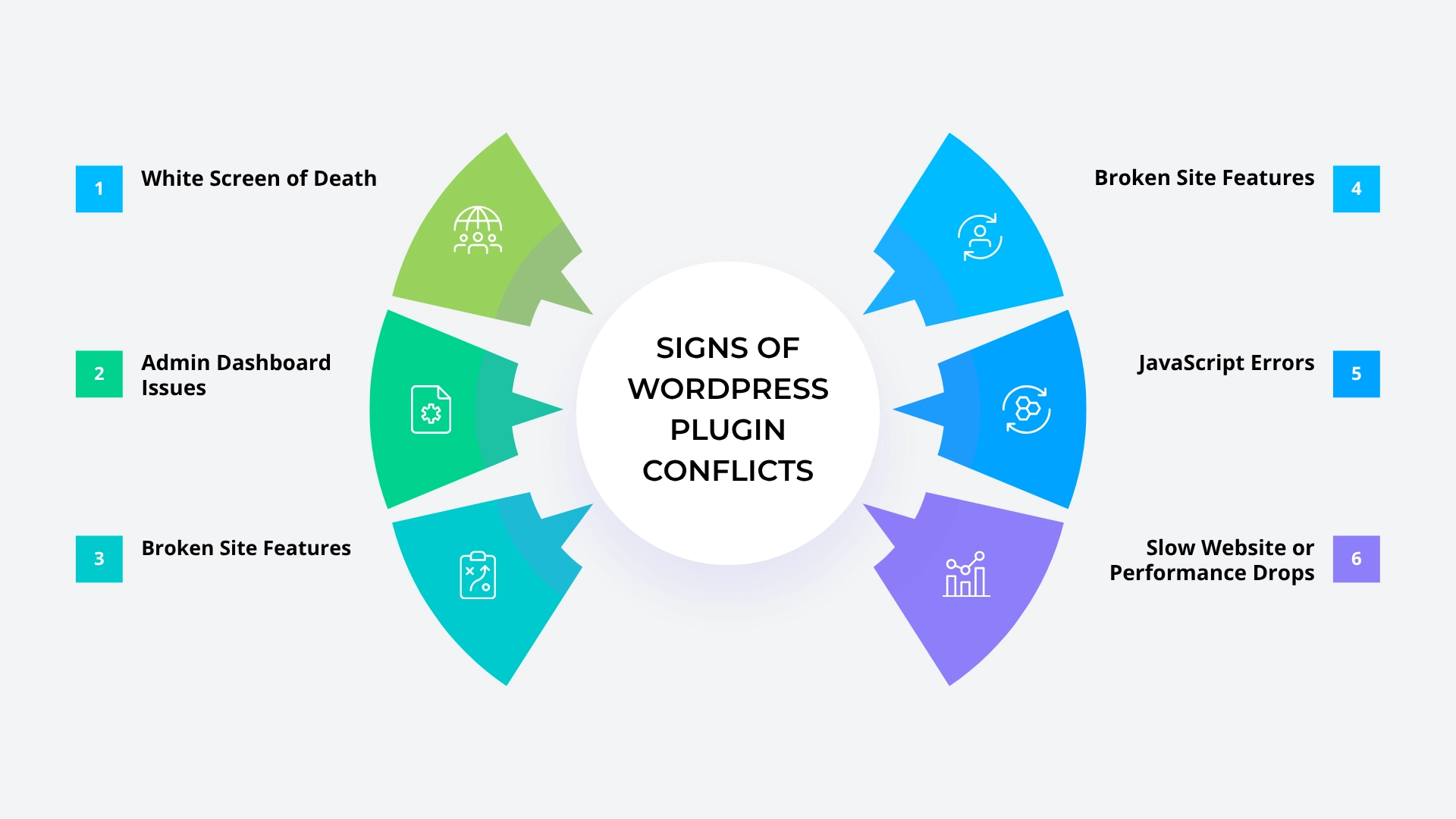
- The White Screen of Death (WSoD): A completely white or blank screen without any error message is a classic sign of a plugin conflict.
- Admin dashboard errors: Being unable to access the backend of your site could indicate a plugin is conflicting with WordPress’s core functionality.
- Strange behavior in website functionalities: From forms not submitting correctly to features disappearing, unusual functionality behavior often points to conflicting plugins.
- Broken front-end layout: These can range from your site’s layout breaking to styles not applying correctly, often due to conflicting CSS or JavaScript.
- JavaScript errors in browser console: Visible through the browser’s console, JavaScript errors are telltale signs of plugin incompatibility.
- Slow loading after plugin updates: if your website is running smoothly and suddenly becomes sluggish without any changes in content volume or traffic levels, a plugin conflict could be slowing things down.
5 steps to identify and resolve the conflicting plugin
Before diving into troubleshooting, clear your browser cache and ensure all your plugins, themes, and WordPress core are up to date. Many apparent WordPress plugin conflicts are actually caused by outdated scripts or cached files.
If the issue persists after this initial check, proceed with the following steps:
Step 1: Back up your site
Always create a full backup of your WordPress site, including the database and files, before making any changes. This ensures you can restore your site if something goes wrong during troubleshooting.
Step 2: Verify the conflict
There are two main methods to confirm whether a WordPress plugin conflict exists:
- Manual method: Deactivate all plugins, then reactivate them one by one while checking your site after each activation. The moment the issue reappears, you’ve likely found the conflicting plugin.
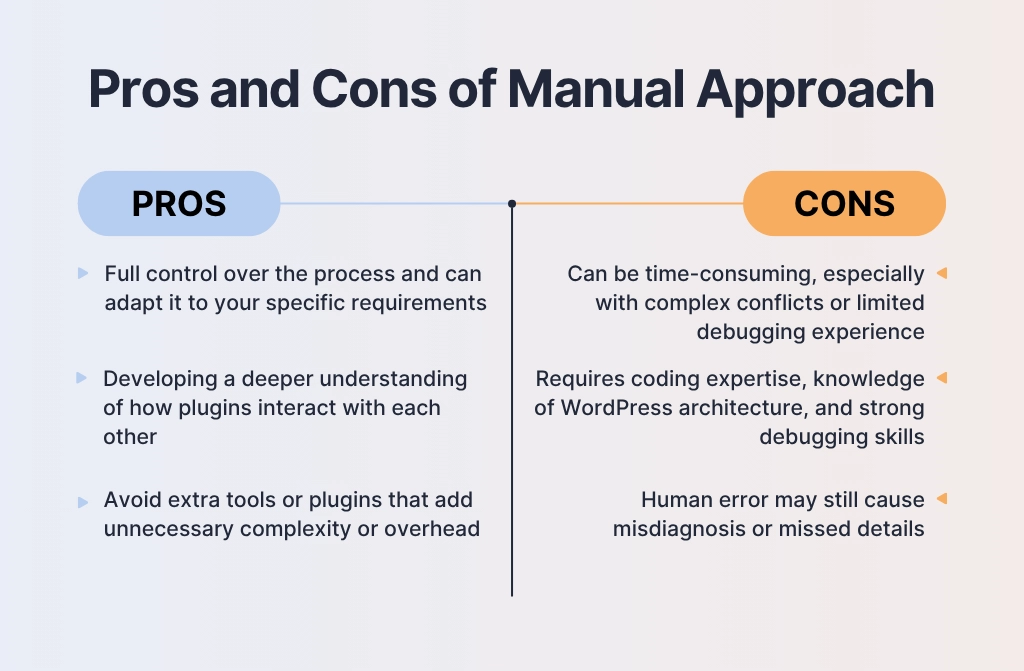
- Diagnostic plugins: Tools like Health Check & Troubleshooting allow you to enter troubleshooting mode, where plugins and themes can be disabled only for session. This lets you safely test WordPress plugin conflicts without affecting what visitors see on your live site.
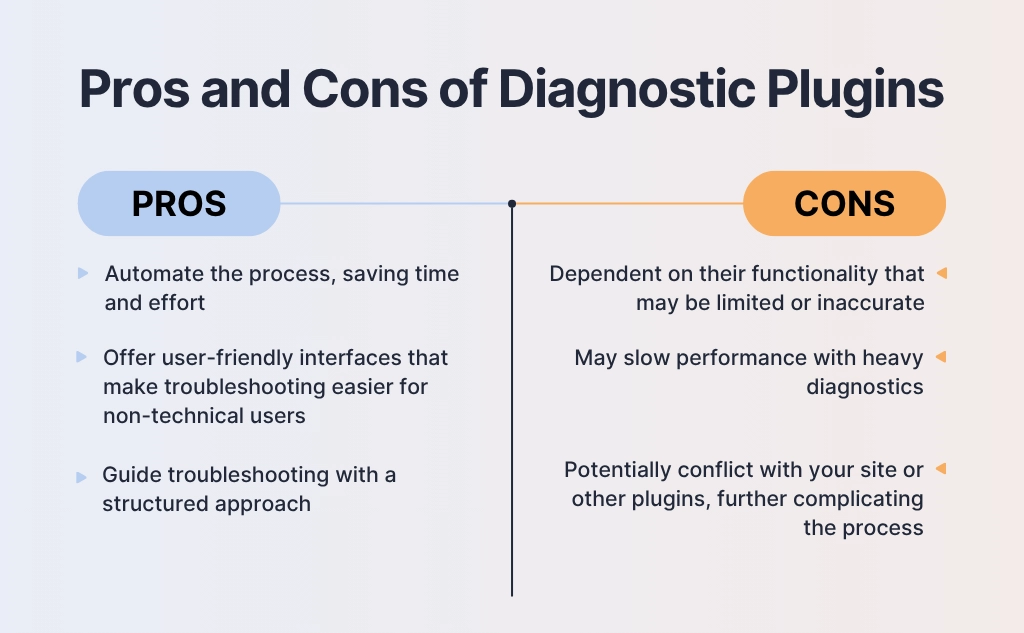
Step 3: Isolate the conflicting plugins
Once you’ve identified the culprit, you can isolate it by:
- Check compatibility: Visit the plugin’s documentation or support forum to see if it’s known to conflict with your theme or other plugins. Many developers list compatibility notes or known issues, and this can save you time.
- Look for updates: Plugin conflicts often arise because one plugin is outdated while others have been updated. Check if the developer has released a patch or bug fix. Updating to the latest version may resolve the issue immediately.
- Test alternatives: If the plugin is essential but no fix is available, consider temporarily disabling it and trying a similar plugin that offers the same functionality. This ensures your site continues to run smoothly while you wait for a permanent solution.
Step 4: Get expert support
If the WordPress plugin conflicts persist or affect critical functionality, reach out for professional help:
- Contact the plugin developer’s support team.
- Consult a WordPress developer for custom theme or code adjustments.
- Use forums or communities for guidance, especially if the conflict is complex.
Deciding whether to call a WordPress developer or fix an issue yourself largely depends on the complexity of the problem, your technical skills, and the potential risks involved
| Fix it yourself | Call a WordPress Developer |
|---|---|
| Minor issues: A button not displaying correctly, a small styling glitch, or plugin or theme update errors Good documentation available: If the plugin developer provides clear guides or FAQs, you can often follow those instructions. | High-risk situation: PHP or database errors, site performance issues or security breaches Custom functionality: Bespoke plugins, theme modifications, or integrations with third-party services work often require developer insight. Time-sensitive situations: Business sites, e-commerce stores, or high-traffic blogs can’t afford downtime. |
Step 5: Consider switching to alternative plugins
If a plugin continues to cause conflicts and no updates or fixes are available, it may be time to explore alternatives. Look for plugins with similar functionality, good reviews, and active developer support to maintain your site’s stability. Always test new plugins in a staging environment before going live.
Facing a complicated plugin conflict? Contact our WordPress experts today and get your site back on track fast.
How to prevent plugin conflicts in WordPress
Preventing WordPress plugin conflicts is always better than fixing them after they happen. By adopting proactive strategies, you can keep your WordPress site stable, fast, and conflict-free.
Conflict prevention via staging
Always test new plugins, updates, or major site changes on a staging site before applying them to your live site. This helps you catch conflicts without affecting visitors or site functionality.
Audit plugins
Before adding a new plugin, verify that it’s compatible with your WordPress version and existing plugins. Prioritize plugins that handle data in a GDPR-compliant way while checking user reviews and support forums to catch any potential reliability issues.
Remove unnecessary plugins
Keeping unused or redundant plugins increases the likelihood of WordPress plugin conflicts, especially if they are outdated or poorly coded. Regularly audit your plugins and remove anything that is no longer essential.
Keep your site up to date
Ensure your WordPress core, themes, PHP and plugins are always up to date. Updates often fix security vulnerabilities and compatibility issues, helping your site run smoothly and securely. Make it a habit to regularly check for and apply updates across all components.
Optimize your database regularly
A clean, well-optimized database improves performance and reduces errors caused by leftover plugin data or broken tables. Use tools like WP-Optimize or database maintenance plugins to keep your site healthy.
Recommended tools for effective WordPress plugin management
Managing WordPress plugins efficiently is key to maintaining a fast, secure, and conflict-free website. The right tools can help you update, monitor, and optimize plugins across one or multiple sites with minimal effort.
| Tool | Purpose | When to Use | Free/Paid |
|---|---|---|---|
| Health check & troubleshooting | Lets you disable plugins and themes only for your session, so visitors are not affected while you test | When troubleshooting conflicts or testing plugin/theme compatibility without affecting live visitors | Free |
| UpdraftPlus | Automate backups of your database, themes, and plugins, allowing quick restoration if something goes wrong. | Before updates, major changes, or as part of regular site maintenance | Premium features available |
| WP Rollback | Quickly revert plugins (and themes) to earlier versions if a recent update causes problems | After a plugin/theme update causes errors or conflicts | Free |
Protect your website from crashes and glitches with Sunbytes
WordPress plugin conflicts are a common challenge for site owners, often leading to broken layouts, slow performance, or even complete downtime. While these issues can be frustrating, they are not inevitable. With Sunbytes’ dedicated developers, you gain access to deep engineering expertise that proactively prevents conflicts before they disrupt your site.
Whether you’re managing a single site or a complex multi‑site network, our team typically identifies the conflicting plugin in just one troubleshooting session and implements a fix without taking your site offline. To keep your WordPress site running on schedule, talk to our experts.
About Sunbytes
Headquartered in the Netherlands, with a delivery hub in Vietnam, Sunbytes is a Dutch technology company with over 15 years of experience in Digital Transformation Solutions across more than 300 projects. We specialize in building and modernizing digital products through senior engineering teams that are dependable, delivery‑focused, and committed to long‑term impact
What sets our approach apart is the way we strengthen digital solutions with two complementary pillars:
- CyberSecurity Solutions: We embed security into every stage of delivery with our Secure by Design methodology. This ensures risks are reduced early, without slowing down progress, and that modernized systems remain resilient rather than fragile.
- Accelerate Workforce Solutions: Scaling transformation requires the right expertise at the right time. We help organizations expand capacity and add critical skills efficiently, keeping roadmaps on track and delivery models stable even as demands grow.